Understanding Cache Files in macOS: A Complete Guide for German Mac Users
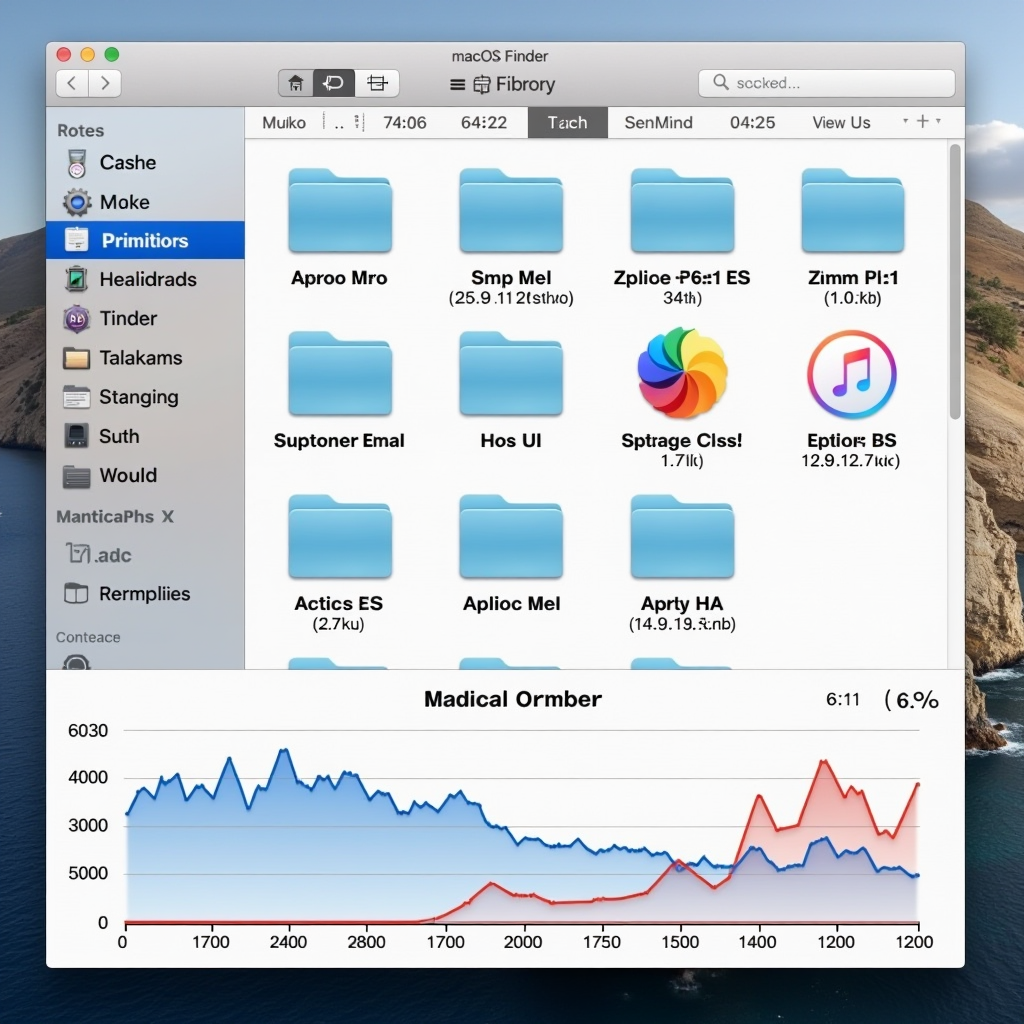
If you're a Mac user in Germany noticing your storage space mysteriously disappearing or your system running slower than usual, cache files might be the culprit. Understanding what cache files are, how they accumulate, and when they become problematic is essential for maintaining optimal mac performance optimization. This comprehensive guide will walk you through everything you need to know about cache management on macOS.
What Are Cache Files and Why Do They Exist?
Cache files are temporary data storage locations that macOS and applications create to speed up operations and improve user experience. Think of cache as a quick-access memory bank where your Mac stores frequently used information, so it doesn't have to retrieve or recalculate the same data repeatedly. When you visit a website, open an application, or perform system operations, your Mac creates cache files to make subsequent actions faster and more efficient.
The concept behind caching is straightforward: instead of loading every element from scratch each time, your system stores processed data locally. For example, when you browse a news website, your browser caches images, stylesheets, and scripts. The next time you visit that site, these elements load instantly from your local storage rather than downloading again from the internet. This mechanism significantly reduces loading times and bandwidth usage, creating a smoother computing experience.
However, while cache files serve an important purpose, they're designed to be temporary. Over time, as you use your Mac for various tasks, these files accumulate in multiple locations throughout your system. What starts as a helpful performance feature can eventually become a storage burden, consuming gigabytes of valuable disk space. For German Mac users who frequently work with resource-intensive applications like Final Cut Pro, Logic Pro, or development environments, cache accumulation can be particularly significant.
The macOS operating system manages several types of cache automatically, but it doesn't always clean them up efficiently. Applications often create their own cache directories, and some poorly designed programs never delete old cache files. This is where understanding mac cache cleaning becomes crucial for maintaining system health and performance.
Types of Cache Files in macOS
Understanding the different types of cache files helps you make informed decisions about which ones to clean and when. macOS organizes cache files into several distinct categories, each serving specific purposes and located in different directories on your system.
System Cache
System cache files are created by macOS itself to optimize core operating system functions. These files are stored in/Library/Caches/and include data from system services, kernel extensions, and background processes. System cache helps macOS boot faster, switch between applications smoothly, and manage memory efficiently. While these files are generally safe to remove, macOS will recreate them as needed, so the performance benefit of cleaning system cache is often temporary.
User Cache
User cache files are specific to your user account and stored in~/Library/Caches/. This directory contains cache data from all applications you use under your account. Each application typically creates its own subfolder here. For instance, Safari stores website data, Chrome keeps browsing cache, and applications like Spotify or Adobe Creative Cloud maintain their own cache directories. User cache files are the most common source of storage bloat and are generally safe to clean, though you may notice slightly slower performance when reopening applications immediately after cleaning.
Browser Cache
Browser cache deserves special attention because web browsers are among the heaviest cache creators on any system. Safari, Chrome, Firefox, and Edge all maintain extensive cache systems that store website elements, cookies, browsing history, and download data. A typical browser cache can easily grow to several gigabytes, especially if you frequently visit media-rich websites or stream video content. German users who regularly access local news sites, streaming services, or online banking platforms will notice particularly rapid browser cache growth. Each browser provides built-in tools for cache management, but understanding when and how to use them is essential for effective mac performance optimization.
Application Cache
Professional applications create substantial cache files to improve workflow efficiency. Video editing software like Final Cut Pro caches rendered previews and optimized media. Photo editing applications store thumbnail previews and adjustment layers. Development environments cache compiled code and dependencies. Music production software maintains audio render caches. These application-specific caches can consume tens or even hundreds of gigabytes, particularly in creative workflows. Understanding which application caches are safe to remove without losing work is crucial for effective storage management.
How Cache Files Accumulate Over Time
Cache accumulation is a gradual process that happens naturally as you use your Mac. Every application launch, website visit, and system operation potentially creates new cache files. The rate of accumulation depends heavily on your usage patterns and the types of applications you run regularly.
For a typical German Mac user who browses the web, checks email, and uses productivity applications, cache files might accumulate at a rate of 500MB to 2GB per month. However, power users working with professional creative software, running virtual machines, or developing software can see cache growth of 10GB or more per month. The problem intensifies because most applications don't automatically clean their old cache files, even when the cached data becomes obsolete.
Consider a practical example: when you edit a video project in Final Cut Pro, the application creates render files and optimized media caches to ensure smooth playback. These files can easily reach 50-100GB for a single project. Once you finish and export the project, these cache files remain on your system indefinitely unless you manually remove them. Multiply this across multiple projects, and you can see how quickly storage disappears.
Similarly, web browsers continuously add to their cache as you browse. Every image, video, stylesheet, and script gets stored locally. While browsers implement size limits for their caches, these limits are often set quite high (several gigabytes), and the cache fills up to this limit over time. Additionally, some websites use aggressive caching strategies that store large amounts of data locally, further accelerating cache growth.
Impact on Storage and Performance
The relationship between cache files and system performance is nuanced. In the short term, cache files improve performance by reducing load times and computational overhead. However, as cache accumulates, it can paradoxically degrade performance and create storage problems.
Storage Space Consumption
The most obvious impact of cache accumulation is storage consumption. On Macs with smaller SSDs (256GB or 512GB), cache files can consume a significant percentage of available space. When your startup disk approaches capacity, macOS begins to struggle with basic operations. The system needs free space for virtual memory, temporary files, and system updates. When cache files occupy too much space, you may encounter errors when trying to install software updates, save large files, or run memory-intensive applications.
German Mac users often report situations where their "System" storage category in About This Mac shows unexpectedly large sizes. Much of this space is occupied by cache files that macOS categorizes as system data. Without proper mac cache cleaning practices, this category can grow to 50GB or more, leaving little room for actual user files and applications.
Performance Degradation
While cache is designed to improve performance, excessive cache accumulation can have the opposite effect. When cache directories contain thousands of files, the system must spend time indexing and managing these files. Applications may slow down when searching through bloated cache folders. Additionally, corrupted cache files can cause applications to crash or behave unpredictably. Outdated cache entries might cause applications to display incorrect information or fail to load updated content properly.
Another performance issue arises when your SSD approaches full capacity. Modern SSDs perform best when they have at least 10-20% free space. As cache files fill your drive, SSD performance degrades, leading to slower read and write speeds across all operations. This affects everything from application launches to file transfers and system responsiveness.
When Cache Files Become Problematic
Not all cache accumulation is problematic, and aggressive cache cleaning can actually harm performance. Understanding when cache files transition from helpful to harmful is key to effective mac performance optimization.
Cache files become problematic in several specific scenarios. First, when your startup disk shows less than 15% free space, it's time to investigate cache accumulation. At this threshold, system performance begins to suffer, and you risk encountering storage-related errors. Second, if you notice applications behaving strangely—crashing unexpectedly, displaying outdated information, or loading slowly despite good internet connectivity—corrupted cache files might be the cause.
Third, after major macOS updates, old cache files from the previous system version can cause compatibility issues. These orphaned cache files serve no purpose and should be removed. Fourth, if you've completed large projects in creative applications and no longer need the associated render caches, these files are safe to remove and can free substantial storage space.
For German Mac users, seasonal cache cleaning makes sense. Consider reviewing and cleaning cache files quarterly, or whenever you notice storage warnings. This balanced approach maintains the performance benefits of caching while preventing excessive accumulation. Between cleaning sessions, cache files serve their intended purpose of speeding up operations.
Safe Cache Management Practices
Effective cache management requires understanding which files are safe to remove and which should be left alone. Not all cache files are created equal, and indiscriminate deletion can cause problems.
User cache files in~/Library/Caches/are generally safe to remove. Applications will recreate necessary cache files when they next launch. However, you should close all applications before cleaning their cache to avoid data corruption. Browser caches can be safely cleared through each browser's built-in settings, though you'll lose the convenience of faster page loads on your frequently visited sites.
System cache files require more caution. While they can be removed, doing so may cause temporary system slowdowns as macOS rebuilds essential caches. It's generally better to let macOS manage system cache automatically unless you're troubleshooting specific issues. Application-specific caches, particularly for creative software, should only be removed when you're certain you no longer need the cached data. Always check application documentation before removing cache files from professional software.
The safest approach to mac cache cleaning involves using built-in macOS tools and application-specific cache management features. Many professional applications include cache management options in their preferences. Browsers provide clear cache functions in their settings. For system-wide cache management, macOS includes storage optimization tools accessible through About This Mac > Storage > Manage.
Conclusion: Balancing Performance and Storage
Understanding cache files is fundamental to maintaining a healthy Mac system. These temporary files serve important performance functions, but their accumulation over time can create storage and performance challenges. For German Mac users, developing a balanced approach to cache management ensures optimal system performance without sacrificing the benefits that caching provides.
The key is recognizing that cache management isn't about aggressive deletion, but rather about informed maintenance. Regular monitoring of your storage space, understanding which cache files are safe to remove, and knowing when cache accumulation becomes problematic allows you to maintain excellent mac performance optimization without constant intervention.
By implementing the practices outlined in this guide, you can keep your Mac running smoothly while ensuring adequate storage space for your important files and applications. Remember that cache files are a natural part of system operation—the goal isn't to eliminate them entirely, but to manage them effectively as part of your overall system maintenance routine.